Topic 11
The Activity Lifecycle, Services, Broadcasts
Important: This topic is not required for the assessment, but is useful general knowledge about Android development.
The Android Activity Lifecycle
To understand Android development more fully it is useful to have understanding of the Android activity lifecycle.
Mobile apps are not quite like standard desktop applications. In particular, the application may be interrupted, most commonly by the user answering a phone call. Also, users commonly switch from one app to another. Unless the user quits the app using the "back" button, when this happens the original app is still running in the background.
To manage these possiblities, Android activities have a defined lifecycle. The idea is to code activities to respond to the different points in the lifecycle. The lifecycle consists of a series of methods which run one after the other, as follows. When coding your app, you override whichever methods you want specific behaviour to occur at. With practically every activity, this includes onCreate(), but your activity might need to override the others too.
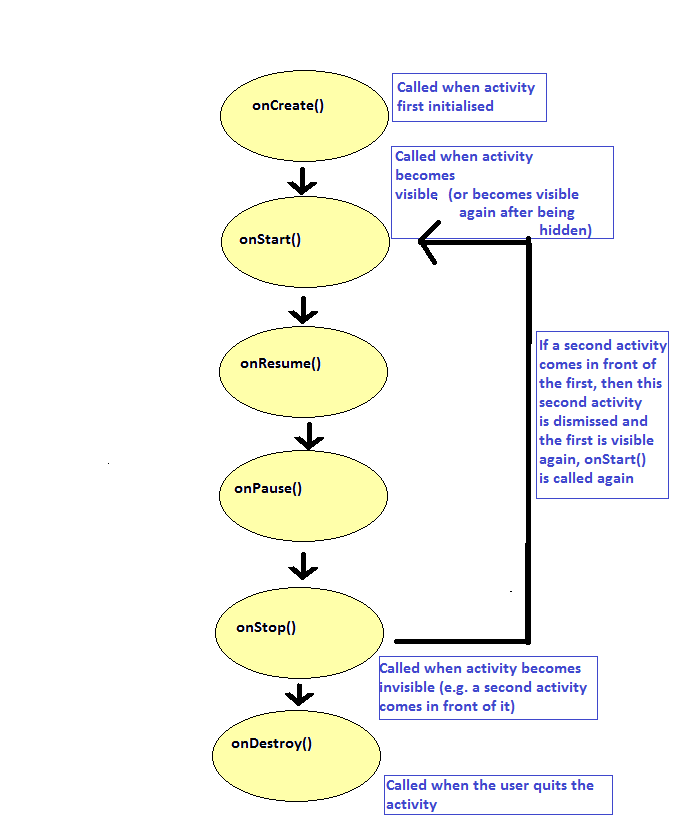
It is described in full on the Android website, here.
The original article describes the lifecycle in full but to summarise, the following methods run when certain events occur:
onCreate(): runs when the application is first launched. Note also that certain actions, such as changing the device orientation, can force the activity to be destroyed and recreated, which will causeonCreate()to re-run.onStart()andonResume(): both run when the activity becomes visible. This can either be when it first becomes visible, or becomes visible again after being hidden. For example, it will be called after you return to the current Activity after using a completely different application, or after closing a second activity within the same application, e.g. a preferences screen, causing the original activity to become visible again. See the discussion ofonPause()andonStop(), below, for the difference between the two.onPause(): when the activity pauses after being fully visible, and focused. This happens on shutdown of the activity, or when another activity comes in front of the current activity, including activities not occupying the whole of the screen.onStop(): is called immediately afteronPause()but only on shutdown, or if the activity coming in front of the current one occupies the whole of the screen.onResume()is the opposite ofonPause()andonStart()is the opposite ofonStop(). Thus,onResume()is called when the current activity becomes visible and focused again after removing an activity in front of it (or when launching the activity), including cases where the activity on top of the current activity, which has just been removed, does not occupy the whole of the screen. By contrast,onStart()is only called either on startup or when the activity on top of the current activity, now being removed, occupies the whole of the screen.onDestroy(): runs when the user dismisses the application. This will happen when the user presses the Back button from the main activity. It can also be called under other circumstances, e.g. Android kills the activity due to low memory, or when the user rotates the device.
The lifecycle can have important consequences for development. For example, in a mapping app you might want to stop GPS communication when the activity becomes invisible and start it again when it becomes visible again (to save battery), in which case you would stop the GPS in onPause() and start it in onResume(). If you did this in onDestroy() and onCreate() instead, the GPS would still be running if the activity was running but invisible, which for a mapping app would be unnecessary.
The differences between onStart()/onStop() and onResume()/onPause() are quite subtle and need only be considered if you are writing activities which do not occupy the whole of the screen, which is not so common. Generally, onPause() and onResume() are more commonly used.
Services
Leaving tasks running when the app is shut down
Frequently in an app we need to perform a task when the activity has been completely shut down. For example, in a music player, we probably want the music to continue to play when the user has closed the player's main activity - and we want the user to be able to pause or rewind the same music when they relaunch the activity. Another example might be a mapping application in which the user would like to record their walking route using GPS. We want the recording to continue even if the user closes the activity - and allow the user to stop the recording if they re-launch the activity.
Introduction to Services
- To deal with these scenarios we use
Services (see the Android developer documentation for full details - here). - A Service is a background application component which is part of an application but is independent of any of the application's Activities.
As they are part of the application, we have to declare all our services in the manifest, immediately after declaring our activities e.g.
Difference between a service and a coroutine
- It is important to note that a Service is not the same as a coroutine.
- It is a separate component to an Activity, but by default it does not run in the background.
- If you wish your service to perform tasks such as connecting to the Internet, you will need to implement a coroutine within the service and switch to a background context
- To launch coroutines from a service, you need to use the
androidx.lifecycle.LifecycleServiceclass rather than an ordinaryService; this requires the dependencyandroidx.lifecycle:lifecycle-service:X.Y.ZwhereX.Y.Zis the version; the current version is 2.7.0.
Intents
To understand services, you need to understand Intents, which are used to communicate between activities and services. What is an Intent? We have looked at these already in the notifications topic but we will return to them now. Essentially, it's a message which can be sent in between Android application components, such as between an activity and a service (in both directions) or to launch a second activity from the main activity. They can also be used to launch entirely separate applications; for example you can launch the standard camera app from your own app in order to take a picture. Intents contain two important components:
- An action. This specifies what the intent does. The recipient of an intent can test the action, and in doing so, understand what the intent is telling it to do. (An activity or service can receive multiple intents).
- Data. Data can be added to an intent as extras, and in doing so, data can be passed from one application component to another.
Implementing a Service
- You must create a class (separate to your Activity) which extends from
android.app.Serviceand then launch it from the main activity. - To launch a Service, you can either start or bind it, or both.
- Starting a service is intended for long-running services, which will run even if the Activity you start them from is closed down.
- Binding a service is intended for shorter-running services, which are bound to a particular instance of an Activity and will stop when the Activity shuts down (e.g. a music player which only plays while the Activity is running). Binding is useful if you want to be able to access the service directly from the activity; if you start the service and do not bind it, you are unable to do this.
- Even though in many cases you do not need to bind a service, you must still provide the
onBind()method in your service, but it can returnnull. - It is possible to both start and bind a service, if you want the service to keep running when the activity is destroyed and you want to easily access it from the activity.
Example of a template service:
Service lifecycle methods
Rather like activities, services have lifecycle methods including:
onCreate()- when the service is created;onStartCommand(intent: Intent?, startFlags: Int, id: Int): Int- runs when a service is started (see below);onBind(intent: Intent?): IBinder?- runs when a service is bound. As seen above, you have to implement this even if you do not use binding, but it can just returnnullonDestroy()- when a service is destroyed.
Starting a service
Starting a service is the easiest, you create an Intent to start a particular Service (similar to creating an Intent to launch a secondary activity) and then call startService():
- This will have the effect both of creating a long-lasting service (which will continue until the service has done its work), though it may be killed if memory becomes low
- Generally you should make your service a background service (the default). You can alternatively make it a foreground service if you want to minimise the chance of it being killed due to low memory, however this is not recommended as it might result in apps the user is actively using being killed instead. Mark Murphy, a well-known authority in Android development, talks about this issue with services. If you really do need a foreground service, you must also provide a notification to the user.
Using onStartCommand() to start the service
- As we have seen,
onStartCommand()is called when a service is started withstartService() - The return value is important; if you want the service to be restarted if it is killed when memory becomes low, you should return a value of
START_STICKY(see here) - If you don't want it to be restarted, return
START_NOT_STICKYinstead Here is an example using
START_STICKY:If the service is restarted due to previously being killed because of low memory, the
intentparameter will be null (again, see here; otherwise, this is the intent used to start the service)
Stopping a service and overriding onDestroy()
- It's possible that you want your activity to stop a service at any time
To do this you can call
stopService()with the same Intent used to start the service, for example:When a service is stopped, the
onDestroy()method of the service will be called. In the Service'sonDestroy(), you must stop any threads, background tasks, etc. that the Service is running, as otherwise, the thread will continue to run after its parent Service has been destroyed, resulting in possible memory leaks and unintended behaviour
Binding a service
While starting a service is best for long running services, it has the disadvantage that you will not have a reference to the Service in the Activity. If you want to be able to easily control your Service from your Activity, there are two main approaches:
- Using broadcasts. This is discussed later.
- Bind the service. This gives you a reference to the service from the activity, which you can then use to control the service.
We will first look at binding the service. You must bind it instead of, or in addition to, starting the service (see the Android documentation for more details).
Binding a service is a little trickier than starting it as you need to provide a Binder object. This is an interface to the service which gives the outside world (e.g. the activity) access to it. The Binder object is an object which inherits from android.os.Binder.
The Activity is able to access the Binder (see below) and, as long as the Binder has a method which returns the Service, can obtain the Service. Thus, the Binder should provide a method to return the service.
As seen above, you must also provide an onBind() method within the Service to create a new Binder object and return it when the Activity binds to the service. Remember that you need this method even if you do not intend to use binding, but it can return null in that case.
A common pattern is to have the Binder as an inner class of the Service (an inner class is a class within another class)
Architecture of binding
To bind a service, we need two more components, a Binder (as we have seen) and a ServiceConnection, which is used to provide a connection between the activity and the service, and is discussed further below. The architecture of binding a service, showing the Binder and ServiceConnection, is shown below: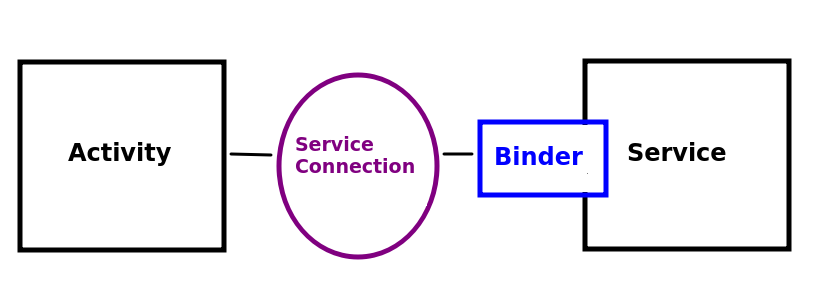
Example
Here is an example. (Note that IBinder is an interface which Binder implements).
Note the following:
- The service contains a binder as an inner class. An instance of the binder is created, and returned, in the
onBind()method. This method runs when the activity binds to it. - The binder has a reference to the service within it, i.e.
musicService. This is needed as the activity will receive only the binder, not the service. Thus, if the activity wants the service, it must obtain it from the binder.
The ServiceConnection
As we have seen, in our activity, we must create a ServiceConnection object, to obtain a connection to the service. Here is an example - this might go in your onCreate():
It is an instance of an anonymous class (a class with no name, which inherits from the abstract class ServiceConnection and overrides the required methods on-the-fly. These methods are:
- The
onServiceConnected()method is a callback method which runs as soon as the Activity has been bound to the Service. The Binder object (the inner class within our Service, see above) is provided as a parameter toonServiceConnected(), so we cast it to the correct object (MusicService.MusicServiceBinder) and obtain our Service using itsserviceattribute. onServiceDisconnected()runs when the service is disconnected from the activity. Here, we're not doing anything in the method but we still need to override it.
Using bindService() to initiate the binding
Finally, In your main activity, you bind the service using bindService() which, like startService() takes an Intent for the Service.
This will bind the activity to the service and trigger the onBind() method in the MusicService. The Context.BIND_AUTO_CREATE flag will "automatically create the service as long as the binding exists" (see here), without this flag, you will also need to call startService() to start the service.
Unbinding
- When an Activity is destroyed (i.e. when
onDestroy()is called), you should callunbindService()to let Android know that the activity does not wish to be connected anymore. - By default, the service will be destroyed if no activities are currently connected to it
unbindService()takes the ServiceConnection as an argumente.g.:
Starting and binding
- What if we wish to bind a service, but want the service to keep going even if an Activity is not running?
- This would be the case in both a music player and a GPS recorder, in which we want a GPS track to record even if the activity shuts down
- In this case, we need to call both
startService()andbindService(). - This will have the effect both of creating a long-lasting service (which will continue until the service has done its work) - this is enabled with
startService()- and allowing the activity to control the service - this is done withbindService(). - You should still call
unbindService()when the activity is destroyed.
Broadcasts
- Broadcasts allow us to use Intents to send information between components, and components can also listen to broadcasts. These components may belong to completely different applications or the same application
- Using broadcasts allows for clean, easy to understand, loosely-coupled components
- A broadcast is an
Intentand as such can pass data to another application component as aBundle
BroadcastReceiver
- To receive a broadcast in a component, we need to create a
BroadcastReceiverobject - A BroadcastReceiver can receive intents and act upon them according to the intent's
action - To use a BroadcastReceiver you must also use an
IntentFilter - An IntentFilter allows you to control which intents an application component can receive
- Intents which do not match the filter will be ignored
Example of sending a broadcast
- We are creating an
intentwith anactionofsendTime - The intent contains an extra,
time, containing the current time in milliseconds since Jan 1st 1970 - We then use
sendBroadcast()to send the Intent as a broadcast - This might typically be placed in a
Service(so that the Service can broadcast updates to one or more activities) but could equally well be placed in any application component, such as an activity
Receiving a broadcast
This code, typically appearing in an Activity, shows a broadcast receiver:
We then need to set up an
IntentFilterin our activity to explicitly state that this activity is capable of receiving intents with an action ofsendTime:- Note how we first check that the intent's action is indeed
sendTime. Even though this is specified by the intent filter, it is recommended to do this as "it is possible for senders to force delivery to specific recipients, bypassing filter resolution" (see the documentation) We then register the receiver with the Activity (or whatever application component is receiving it), specifying both receiver and intent filter:
ContextCompat.RECEIVER_NOT_EXPORTEDspecifies that we cannot receive broadcasts from other apps, which is useful for security. In theory, an app could send a malicious broadcast to another app which could have harmful side effects, so if we don't need inter-app communication when receiving broadcasts, we should turn it off.- We use
ContextCompatbecause we are using the compatibility version of the call;RECEIVER_NOT_EXPORTEDwas only introduced in API 33. The compatibility (appcompat) library allows us to use newer API features on older versions of Android.
Apps using RECEIVER_NOT_EXPORTED need further modification on devices running API level 34 and 35 and blocks broadcasts even within the same app. You need to set the intent's package to the application ID. The application ID can be found in the app's build.gradle.kts under applicationId. For example:
Unregistering a broadcast receiver
- A broadcast receiver must be unregistered on shutdown of the component receiving it
- This would typically go in
onDestroy() - e.g.
Important point - it might take some time to asynchronously start a service
It's important to note that it might take time to start a service. The process of starting a service takes place asynchronously and might take time to complete. This has important implications if you do something in the main activity (such as testing whether a permission has been granted) while waiting for the service to start. You might, for example, send a broadcast to tell the service to start listening for GPS updates as soon as the permissions have been checked. But at this stage (if the user does not need to explicitly grant permission via the dialog) the service may not have been started yet, so there will be no service to broadcast to! Consequently, your broadcast intent will go un-noticed.
A way round this is to send a broadcast from the service to the activity as soon as onStartCommand() has completed. This then tells the activity that the service is started, and ready to receive broadcasts. So as a result, the activity can then check permissions when this broadcast has been received from the service.
Launching coroutines from a service
If you wish to launch coroutines from a service, you should extend LifecycleService rather than Service. This allows you to launch the coroutine from lifecycleScope. You must include the lifecycle-service library to do this. In your version catalog specify it as follows:
with lifecycleService set to 2.8.7 in the version ssection. Also include a corresponding entry in your build.gradle.kts dependencies:
Finally, please note that you should not override onBind() in LifecycleService.
Exercise
- You are going to write a stopwatch application using services and broadcasts. The idea is to develop a front end allowing the user to start, stop and reset a stopwatch via buttons on the UI. The stopwatch should be controlled by a service. Each button (start, stop and reset) on the UI should send a broadcast to the service, and the service should act accordingly.
- You'll need to add the
lifecycle-servicedependency as described above. - In order to launch coroutines from the service, you'll need your service to inherit from
androidx.lifecycle.LifecycleService - The service should contain a variable
count, an integer which increases by one every second (see below). - The
onStartCommand()in the service should launch a coroutine which should include a loop which loops until the service is destroyed. This can be done by using a boolean which is set to false inonDestroy(). In the coroutine, switch context to
Dispatchers.IOand in here, calldelay()with a parameter of 1000 (milliseconds). This will pause the coroutine but in the background context so the UI does not become unresponsive. After thedelay(), increase the counter by one. The code would look something like this:- Implement a broadcast receiver in the service to implement the logic for the Start, Stop and Reset operations. The first two can be handled with a boolean variable and the Reset can be handled by resetting the counter to 0.
- When the counter increases by one, send a broadcast back to the main activity containing the value of the counter. Receive the broadcast in the main activity by showing the value of the counter in the UI. You will also need a
ViewModelcontaining the counter asLiveDatato implement this. - Implement code to pause the stopwatch when the activity becomes invisible (but still running, e.g. the user navigates to the home screen), and restart it when the activity becomes visible again. You'll need to look at the lifecycle notes in order to work out how to do this.
- More advanced : Write a GPS application which makes use of a service. Permissions handling should be done in the main activity, but the GPS listening should be handled in the service.
- When the service's
onStartCommand()has completed it should send a broadcast back to the activity, to inform the activity that it's running and can be communicated with. - The main activity should send a broadcast to the service when it is ready to start receiving GPS updates (when the permissions have been granted) as long as the service is running.
- When the service receives this broadcast, it should start the location listener.
- The
onLocationChanged()should send a broadcast back to the activity containing the latitude and longitude, which should be displayed on the activity's UI. - You need to think about what you would do if the permissions are already granted and thus the service is ready to receive GPS updates, but the service is not running yet!